MotionShine
Short answer: pick the sound first. To record your voice, press Shift-Command-5, open Options and choose your microphone, then click Record. To record the sound your Mac plays, such as a video, a meeting or an app, you need macOS 27 Golden Gate or later and the "Include System Audio" option, or a recorder that captures system audio itself. On an older macOS, the built-in recorder cannot do it.
Apple's steps below come from its own Support page, published on 14 September 2026. App facts come from each maker's own pages, checked on 14 October 2026. Keys and menus can change with an update.
Which sound do you want?
"Audio" means two different things on a Mac, and most guides mix them up.
- Microphone: your voice, or the room. The built-in recorder does this on every supported Mac.
- System audio: the sound your Mac plays, from a browser video, a call or an app. This is the one people search for as "internal audio".
| What you want to record | Built-in recorder | What else works |
|---|---|---|
| Your voice only | Yes, choose a microphone | Any recorder |
| Your Mac's sound, on macOS 27 or later | Yes, "Include System Audio" | Any recorder |
| Your Mac's sound, on an older macOS | No | A virtual audio device, or a recorder that captures it itself |
| Voice and Mac sound together | Apple lists both options in the same menu on macOS 27 or later | A recorder that records both |
Method 1: record your voice with the built-in recorder
- Press Shift-Command-5 to open the Screenshot toolbar.
- Click Options.
- Under Microphone, choose the microphone you want.
- Choose the whole screen, a window or a part of the screen, and click Record.
- Stop with the Stop button in the menu bar or Control-Command-Esc. Every way to stop a Mac screen recording lists the stop key for other apps too.
QuickTime Player works the same way: File, then New Screen Recording, then the arrow next to the Record button to pick the microphone. Apple's page adds one tip: if you hear feedback, lower the volume or use headphones with a microphone.
Method 2: record your Mac's sound on macOS 27 or later
Apple's page says that, in macOS 27 Golden Gate or later, you choose Include System Audio in the Options menu of the Screenshot toolbar. That is the only place Apple lists it.
Two limits to know. Apple's page says that some apps, such as the Apple TV app, might not let you record their windows, so a protected video can still come out blank. And on macOS 26 and earlier, the option is not there.
Method 3: older macOS, with a virtual audio device
Before macOS 27, the common way to get Mac sound into a recording is a virtual audio device: a small driver that behaves like a microphone but carries the sound your Mac is playing. BlackHole is the one forum answers point to, and its own page describes it as a loopback driver for passing audio between apps, for Apple silicon and Intel. Reed College's guide uses a loopback audio extension in the same way.
The steps, as Reed's guide describes them:
- Install the virtual audio device.
- In System Settings, Sound, set the output to that device.
- Open QuickTime Player, start a new screen recording, and in Options choose the same device as the audio source.
- Record. When you finish, set the sound output back to your speakers.
The catch is in step 2: while the output is the virtual device, you hear nothing from your Mac, which surprises most people the first time. It also does not record your voice at the same time unless you build a combined device, which is a longer job than the steps above. If you record often, a recorder that captures system audio itself saves you the setup.
Method 4: a recorder that captures Mac sound itself
Most current Mac recorders capture system audio without a driver. This is what each maker says on its own pages:
| App | Records Mac sound | Notes | Price |
|---|---|---|---|
| MotionShine | Yes, with your microphone | Each has its own volume in the editor | Free, Pro from $49 once at launch |
| Screen Studio | Yes | Record all or chosen apps | $9 a month yearly, $29 monthly |
| Cap | Yes | Free for personal use | |
| CleanShot X | Yes, no driver | Screenshots plus short clips | $35 once |
| ScreenFlow | Yes, no driver since version 10.5 | Full timeline editor | $199 once |
| Camtasia | Yes | Its support guide may ask you to install TechSmith's audio component | From $39 a year |
| OBS Studio | Yes on macOS 13 or later with OBS 30 or later | Live-stream tool, no editor | Free |
| ScreenPal | Paid plans only | Needs a capture filter install | Free plan has no system audio |
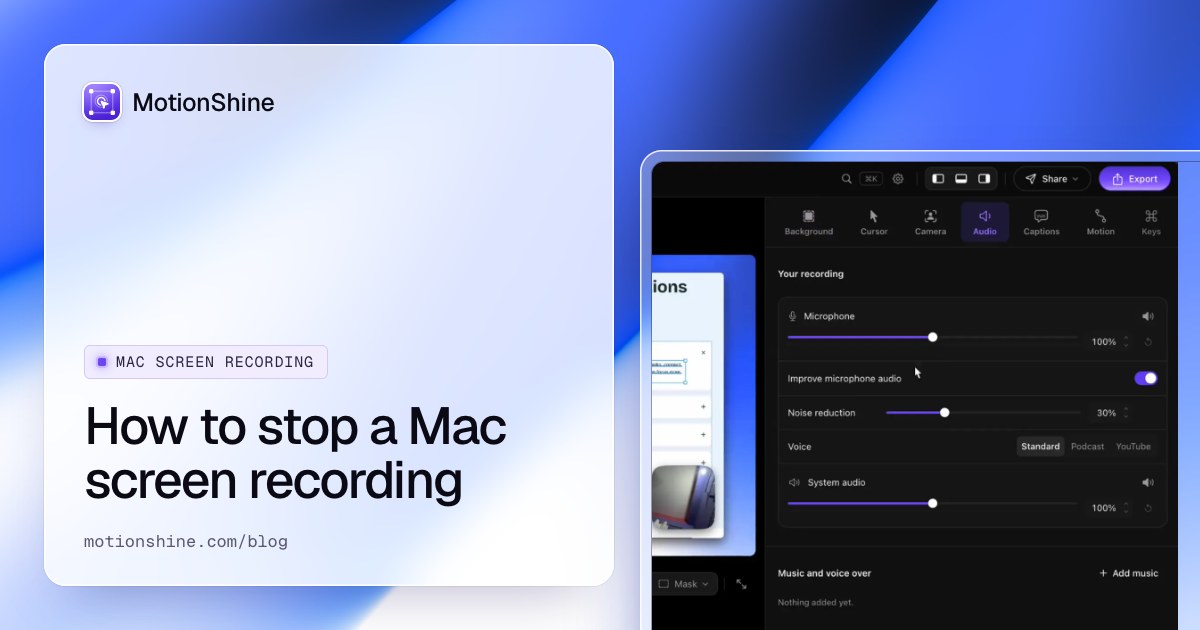
MotionShine records your microphone and your Mac's own sound together, and in the editor each one has its own volume, so you can turn the Mac's sound up or down after recording. It runs on macOS 13 and later. The free version exports up to 720p with no watermark and no time limit, and Pro adds 1080p up to 4K. For more apps, see the best screen recorders for Mac.
Why is there no sound in my recording?
- No microphone chosen. Open Options and pick one. The built-in recorder records no sound when none is selected.
- You wanted the Mac's sound on an older macOS. The built-in recorder does not capture it before macOS 27. Use method 3 or 4.
- The app blocks recording. Apple's page says some apps, such as the Apple TV app, might not let you record their windows.
- The recorder has no permission. Open System Settings, Privacy & Security, then Screen & System Audio Recording, and check that the app is switched on.
- Echo or feedback. Use headphones, or lower the volume, as Apple suggests.
Keep the built-in recorder if
You only need your voice over a quick clip, or you are on macOS 27 or later and the Mac's sound is enough. It costs nothing and needs no install. Switch to another recorder when you need the Mac's sound on an older macOS, or an editor and zoom.
FAQ
Does screen recording on Mac record audio?
It records your microphone if you choose one in Options. It records your Mac's own sound only on macOS 27 Golden Gate or later, with Include System Audio.
Can I screen record on Mac with sound from a video?
Yes, if the app allows recording. On macOS 27 or later use Include System Audio. On an older macOS you need a virtual audio device or a recorder that captures system audio itself. Some protected apps, such as the Apple TV app, may not let you record their windows.
How do I record my screen and my voice at the same time?
Choose your microphone in Options before you click Record. A recorder such as MotionShine records the microphone and the Mac's sound together.
Where does the recording go?
By default it is saved on your desktop as a .mov file named "Screen Recording" with the date and time. You can change the folder under Options.
Does the same work on a MacBook Air or Pro?
Yes. The steps are the same on every Mac that runs the macOS version in the table above.