MotionShine
Short answer: the best video editing tips for a screen recording are to cut every pause, zoom in where the action is, make the cursor easy to follow, fix the sound before the picture, add captions and keep the video short. Do them in that order. A recording that is cut tightly and zoomed well beats one with fancy transitions.
Most video editing tips online are written for camera footage: B-roll, color grading, cutaways. Guides that show up for this search, such as TechSmith's and Brightcove's, cover planning, trimming, B-roll, audio and color, as the search results on 23 October 2026 describe them. Those tips are fine. They just do not tell you what to do when your whole video is a Mac screen with a small cursor on it. This guide does.
The order that saves the most time
Edit in this order. Each step makes the next one easier.
- Cut the start, the end and the mistakes.
- Cut the dead air in the middle.
- Fix the audio.
- Zoom and frame.
- Fix the cursor and the clicks.
- Add text and captions.
- Export for where it will be watched.
If you reverse it, you spend an hour zooming a section you later delete.
Before you edit: record so the edit is easy
Good editing starts at recording. Two habits make the later steps shorter.
Tip 1: Pause for one second before you start talking, and one second after you finish. Silence at the edges gives you room to cut cleanly.
Tip 2: Say the mistake out loud and redo the sentence. When you slip, stop, take a breath, and say the line again. In the edit the bad take is easy to find, because there is a gap right before it.
Tip 3: Close what you do not need. Notifications, extra windows and your desktop can end up in the video. Apple's Screenshot app lets you choose a window or a portion of the screen to record, so you can leave the rest out. Record Selected Window needs macOS Tahoe 26 or later, according to Apple Support (page published 14 September 2026). How to screen record on Mac lists every setting.
Tip 4: Turn on the mouse-click circle if you will not edit it later. Apple's Options menu has Show Mouse Clicks, which draws a black circle around the pointer when you click. It is drawn into the recording, so only turn it on if you want it in the final video.
Cutting: the biggest improvement per minute
Tip 5: Trim the front and back first. On a Mac, QuickTime Player does this for free. Open the clip, choose Edit, then Trim, drag the yellow handles and click Trim. Apple's QuickTime guide says it can trim, rearrange and rotate clips. How to edit a screen recording on Mac has the steps, and the free video trimmer does the same in a browser.
Tip 6: Cut dead air, not breaths. Dead air is the time when nothing changes on screen and nobody speaks: a page loading, you hunting for a menu, you thinking. Cut those. Keep the short natural pauses between sentences, or the voice sounds robotic.
Tip 7: Cut on the action. When two parts of a recording are joined, cut at a click or a typed word, not in the middle of a still moment. The change on screen hides the cut.
Tip 8: Speed up the boring parts instead of cutting them, if the viewer needs to see them happen. A progress bar, a file copying or a long install can run faster with a speed change. The free video speed changer does it in a browser. Tell the viewer with a short text note that you sped it up.
Tip 9: Remove your "um" runs, but do not over-cut. Cut a long "um" or a false start. If you remove every small hesitation the voice becomes unnatural and the viewer notices.
Sound: viewers forgive a rough picture, not bad audio
Tip 10: Listen with headphones before you look at anything. Check that the voice is clear, the level is steady and no notification sound or keyboard thump is louder than you.
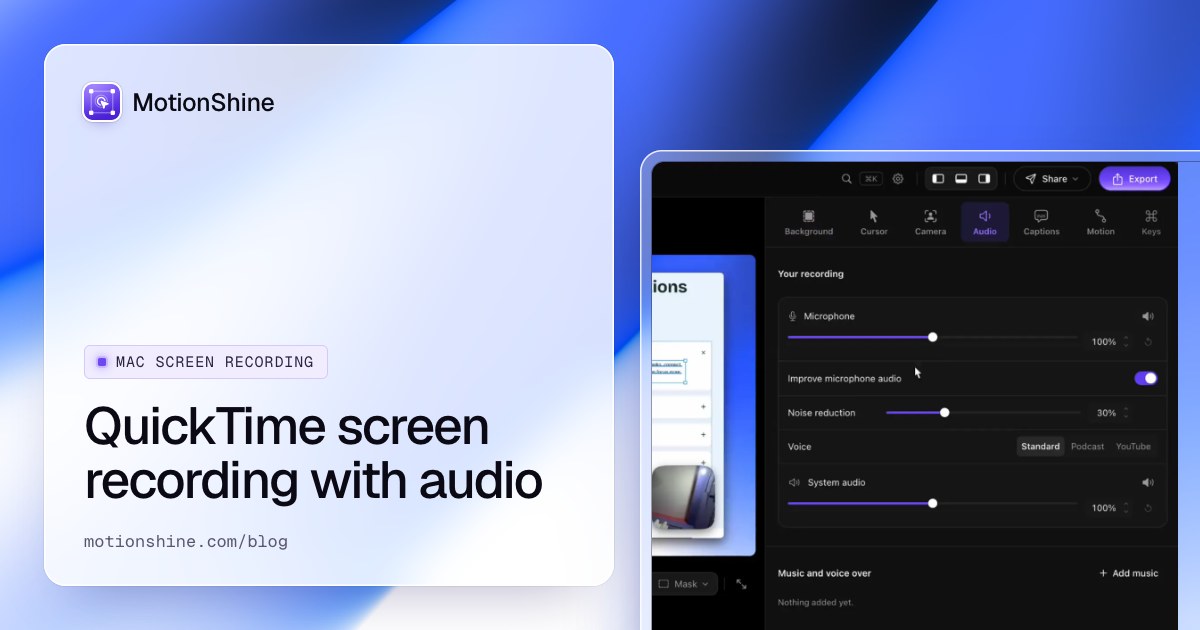
Tip 11: Fix the sound at the source if you can. A microphone test before a long take prevents a bad hour. The free webcam and mic test shows whether your mic is live. If you also want the Mac's own sound, how to screen record on Mac with audio explains it. Apple's Screenshot options list a microphone choice, and Include System Audio needs macOS 27 Golden Gate or later, according to the Apple Support page.
Tip 12: Record the voice separately if the take is messy. A voice over lets you narrate over a clean, already-cut recording. Many editors have a voice over lane. MotionShine's editor does, among its lanes for text, pictures and music.
Tip 13: Keep music under the voice. If music is on, it should sit well below the speaking voice. If you have to think about whether it is too loud, it is.
Framing: make small things big
A screen recording is often shot on a large monitor and watched on a laptop or a phone. Text that looks fine on your screen is tiny when scaled down.
Tip 14: Zoom in on the click. Zoom into the area where something happens, hold for a moment, then zoom out. This is the most useful edit for a screen recording, and the slowest to do by hand. In a general editor you set keyframes for each zoom, one by one. In a tool built for screen recordings, such as MotionShine (this guide is by its maker), auto zoom happens on clicks, and you adjust it in the editor.
Tip 15: Do not zoom constantly. Zoom only when there is something to see. If every second moves, the viewer gets tired. A steady wide shot is the rest position.
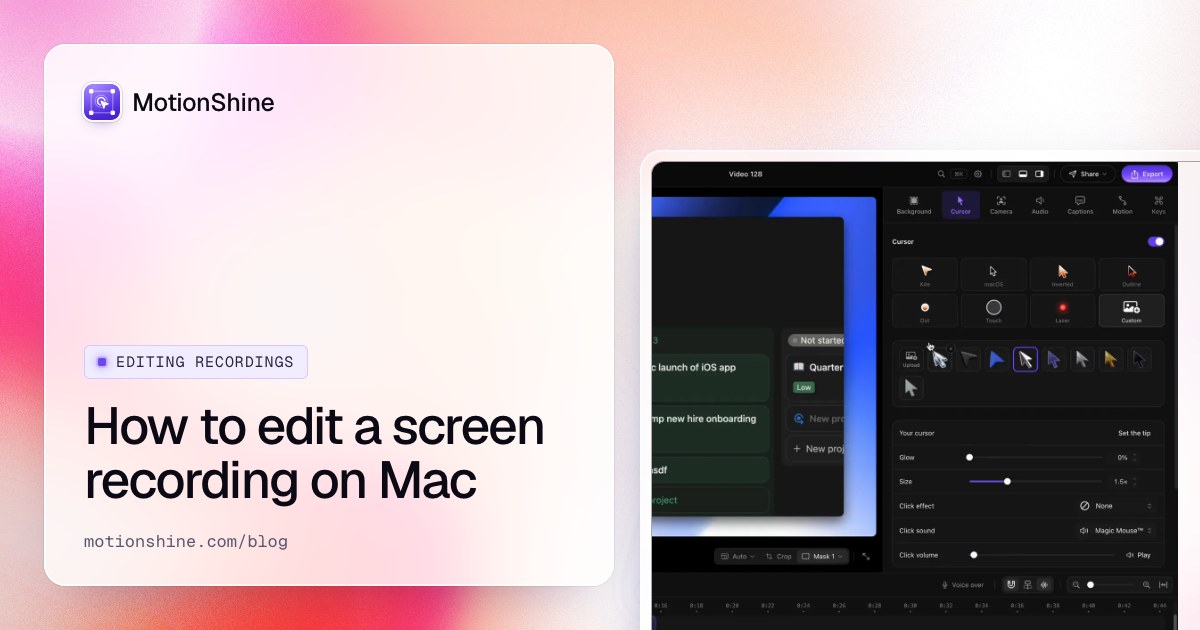
Tip 16: Make the cursor easy to follow. A jumpy cursor distracts. A smooth cursor, a larger pointer or a click effect makes it easier to see where to look. MotionShine records with a smooth cursor and click effects you can add. Other editors can enlarge or highlight the cursor by hand.
Text, captions and pace
Tip 17: Add captions. Many people watch with the sound off. Captions also help people who are deaf or hard of hearing and viewers in a noisy place. MotionShine's editor makes captions on device. A free subtitle generator exists as a browser tool too. Always read the captions once: names, product words and numbers are the usual mistakes.
Tip 18: Keep it as short as it can be. Say what the video is about in the first few seconds. If it is a tutorial, name the result up front: "Here is how to export a report." Cut anything that does not help the viewer reach it.
Which tool does which edit
| Edit | QuickTime Player (free, on your Mac) | A general editor (iMovie, Resolve, Final Cut Pro, Premiere Pro) | An editor built for screen recordings |
|---|---|---|---|
| Trim start and end | Yes, Edit then Trim | Yes | Yes |
| Split and rearrange clips | Apple's guide says QuickTime can rearrange clips | Yes | Depends on the app |
| Zoom on a click | Not in Apple's list of edits | Yes, by hand with keyframes | Often automatic |
| Smooth or bigger cursor | Not in Apple's list of edits | By hand, if at all | Often built in |
| Captions | Not in Apple's list of edits | Depends on the app | Depends on the app |
| Fits a Mac screen recording | Basic | Powerful but manual | Made for it |
QuickTime's row is based on Apple's QuickTime Player guide, which says you can trim, rearrange and rotate, and the other rows are general descriptions, not a test of any one app. If you are choosing a general editor, see the best video editing software for Mac for prices read from each maker's page on 23 October 2026.
Exporting: size, format and length
Export last. Choose the output based on where the video will be watched.
- Resolution. For a blog post or docs page, 1080p is usually plenty. MotionShine exports free up to 720p at 30 fps with no watermark and no time limit, and Pro unlocks 1080p, 1440p, 4K and 60 fps.
- Frame rate. 30 fps is fine for most screen recordings. 60 fps helps with fast motion, like scrolling or games. How to record your screen at 60 fps on Mac explains when it matters.
- File type. Apple's Screenshot app saves .mov files. If a site wants MP4, the free MOV to MP4 converter runs in the browser. MOV vs MP4 for screen recordings covers the difference.
- Codec. H.264 vs HEVC explains why a file plays on one device and not another.
- File size. If email or chat rejects the file, the free video compressor shrinks it.
Mistakes that make a screen recording hard to watch
- A long intro. Nobody needs 20 seconds of logo before the first click.
- Transitions on every cut. A plain cut is cleaner. Save a fade for a real change of topic.
- Tiny text. Increase the browser zoom before recording, or zoom in the edit.
- Hidden personal data. Check every frame for names, emails and tokens before you share. Blurring or cropping is the fix, and how to blur text in a screenshot covers the still-image case.
- Music that fights the voice. See tip 13.
- Never saying what to do next. End with the action: "Click Save", or "Try it on your own file".
A short checklist to copy
- Trim the start and end.
- Cut the dead air and the mistakes.
- Listen to the sound with headphones.
- Zoom where the action is, and nowhere else.
- Check the cursor is easy to follow.
- Add captions and read them.
- Look at the first five seconds and the last five.
- Export at the size where it will be watched.
- Check every frame for private data.
FAQ
What are the most important video editing tips for beginners?
Cut the start and end, cut dead air, fix the audio, and keep the video short. Those four changes make more difference than any effect. For screen recordings, add one more: zoom in where something happens.
How do I edit a screen recording on a Mac for free?
Use QuickTime Player. Choose Edit, then Trim, drag the yellow handles and click Trim. Apple's QuickTime guide says you can also rearrange and rotate clips. For zooms and a cleaner cursor you need an editor made for screen recordings or a general editor with keyframes.
How long should a screen recording video be?
As short as it can be while still doing its job. Give the answer or the result in the first few seconds, then show how. There is no fixed length that works for every video.
Should I add captions to a screen recording?
Yes, in most cases. Many viewers watch without sound, and captions help people who cannot hear the video. Read the captions once before you export, because names and product words are often wrong.
What resolution should I export a screen recording at?
1080p is a safe default for most uses. Use 4K if viewers will see it on large screens and you recorded at that size. Check what your editor allows for free. MotionShine's free export goes up to 720p at 30 fps.
Do I need a paid video editor for screen recordings?
Not always. A trim needs only QuickTime Player. Free general editors like iMovie and DaVinci Resolve cover more. A paid or specialist tool becomes worth it when you make screen videos often and want zooms and cursor polish without keyframing each one.